Ricoh GR not connecting to your iPhone? Fixes that work
Updated November 27, 2026
When a GR refuses to connect, it’s almost always one of a handful of things: a permission on the iPhone, an old pairing, or the camera going to sleep. Work through these in order. Most people are connected again by step three.
1. Check the iPhone’s permissions
Camera apps need two permissions that are easy to miss. In the Settings app, find the app you’re using and make sure Bluetooth and Local Network are both on. Without Local Network, the iPhone can join the camera’s Wi-Fi but the app still can’t see it.
2. Remove the old pairing and pair again
If the camera was paired before, or paired with a different app, the saved pairing can go stale. Remove the camera in the app, and in Settings › Bluetooth tap the camera and choose Forget This Device. Then open the camera’s pairing screen and pair again, keeping that screen open until it finishes.
3. Keep the camera awake
A GR that dims or powers off mid-transfer drops the connection. Turn the camera on, keep it unlocked, and make sure the battery isn’t nearly flat. A low battery can stop the camera turning its Wi-Fi on at all.
4. Let the iPhone join the camera’s Wi-Fi
When the app asks to join the camera’s network, tap Join. If the iPhone keeps jumping back to your home Wi-Fi, turn off Auto-Join for the camera’s network in Wi-Fi settings and try again, or move a little away from your router.
5. Restart both, and update the firmware
Turn the camera off and on, and restart the iPhone. If it still won’t connect, check Ricoh’s site for newer camera firmware, since updates can include wireless fixes.
Still stuck? Use a cable
On an iPhone with USB-C, you can skip wireless entirely. Plug the GR in with a USB-C cable, turn it on, and import directly. It’s faster for large batches anyway.
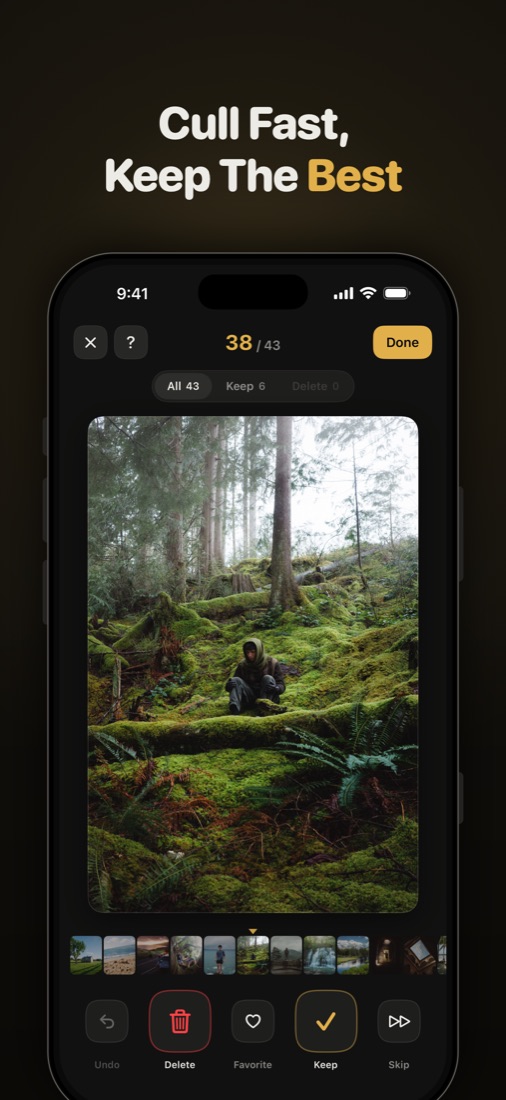
GR Flow handles both: it pairs with your GR over Bluetooth, imports over Wi-Fi, and falls back to a USB-C cable when you plug in. If a connection stalls, it tells you why, so you’re not left guessing.